


 Candice Tillman
Trying to connect Salesforce with Azure DevOps without writing code usually starts with a simple idea. You just need both systems to stay in sync.
Then it turns out it is not that simple.
At first, it is a small mismatch. A field does not update. A status looks different in each system. Someone forgets to sync something, and suddenly the full picture is no longer accurate. Teams keep moving, but they are constantly catching up with each other.
That is when it becomes clear that the issue is not speed or effort. It is the gap between systems.
Custom integrations can fix it, but they come with their own cost. Every change requires development time, and even small adjustments start taking longer than they should.
This is why no-code tools have become more common. Not because they are easier, but because they remove that delay between needing a change and actually making it.
Why No Code Becomes Critical as You Grow
When things are small, manual work does not feel like a problem. Someone updates a status. Someone sends a message. Someone double-checks the data.
It works for a while.
But as soon as the number of deals, tickets, and updates grows, those small actions turn into constant overhead. Time gets lost in coordination instead of actual work. The main advantage of no-code tools is not avoiding development. It is the ability to adjust workflows immediately.
A process changes, and you update it on the spot. A new step appears, and you add it without waiting.
That flexibility becomes more important the more your system grows.
1. Peeklogic Salesforce Azure DevOps Connector

The Peeklogic Salesforce Azure DevOps Connector is built for one specific purpose, which is why it feels more direct than most alternatives.
Instead of adding another layer between systems, it works inside Salesforce. That means teams can manage Azure DevOps work items without switching tools, which removes a lot of unnecessary steps.
At the same time, it supports full two-way synchronization, including custom fields. This allows both systems to stay aligned without extra effort.
Teams usually rely on it for:
- Two-way synchronization between Salesforce records and Azure DevOps work items
- Mapping of standard and custom fields, including statuses, comments, and attachments
- Real-time updates without manual input
- Managing work items directly inside Salesforce
- Automation through Salesforce Flow without coding
It works well when the goal is to improve the workflow without adding complexity.
2. Zapier
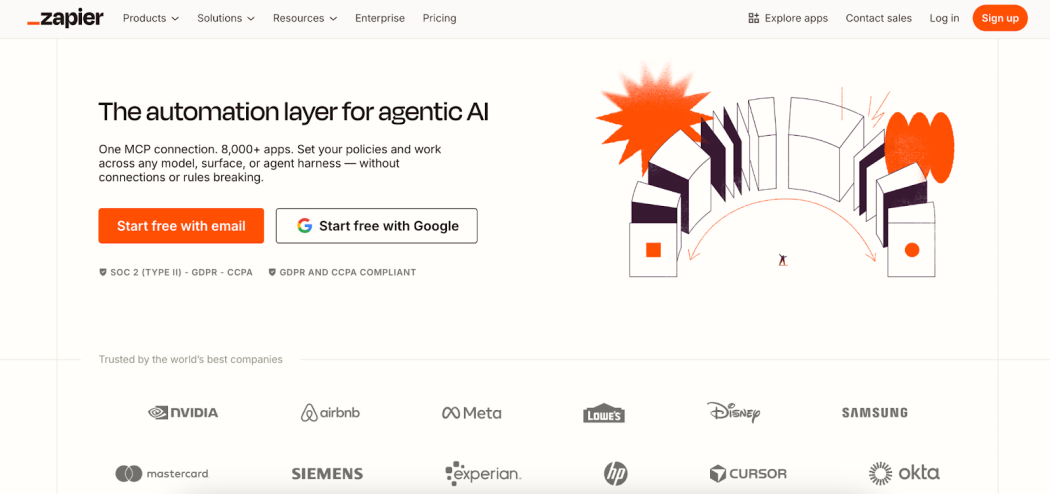
Zapier is often the first tool teams try because it is easy to understand and quick to set up.
The logic is simple. An event happens in Salesforce, and it triggers an action in another system. That makes it useful for basic automation.
It works best when workflows are straightforward and do not require constant synchronization.
Teams usually use it for:
- Creating work items when something changes in Salesforce
- Updating records based on DevOps activity
- Automating repetitive actions
- Connecting Salesforce with multiple other tools
- Setting up workflows using templates
As workflows grow, it becomes clear that it is designed for simpler use cases.
3. Exalate
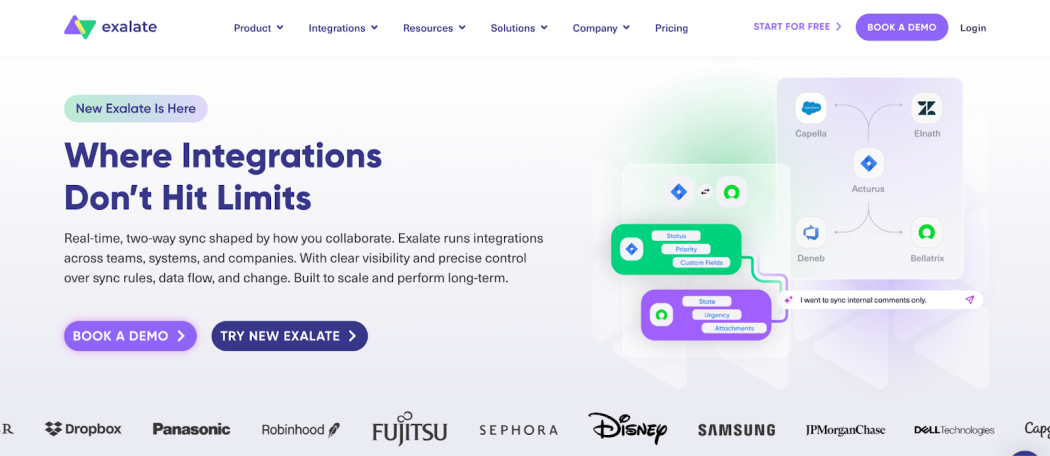
Exalate takes a different approach. It focuses on control rather than simplicity.
Instead of predefined rules, it allows teams to define how synchronization works. You decide what gets shared, how it is transformed, and when updates happen.
This makes it useful when workflows are not standard or when different teams need different logic.
Teams often use it for:
- Customizing synchronization behavior
- Controlling which data is shared between systems
- Handling more complex workflows
- Connecting multiple systems at once
- Adapting integration logic to specific requirements
It requires more effort to set up, but it gives more flexibility in return.
4. Workato
Workato moves beyond simple integration and focuses on workflows that involve multiple systems.
It allows teams to build processes where Salesforce and Azure DevOps are just part of a larger sequence. This is useful when operations involve several steps and different tools.
It is often used in environments where processes are already complex.
Teams rely on it for:
- Automating workflows across multiple platforms
- Building multi-step processes without coding
- Managing how data moves between systems
- Supporting larger teams and operations
- Scaling workflows without constant rework
It fits teams that need more structure as they grow.
5. MuleSoft
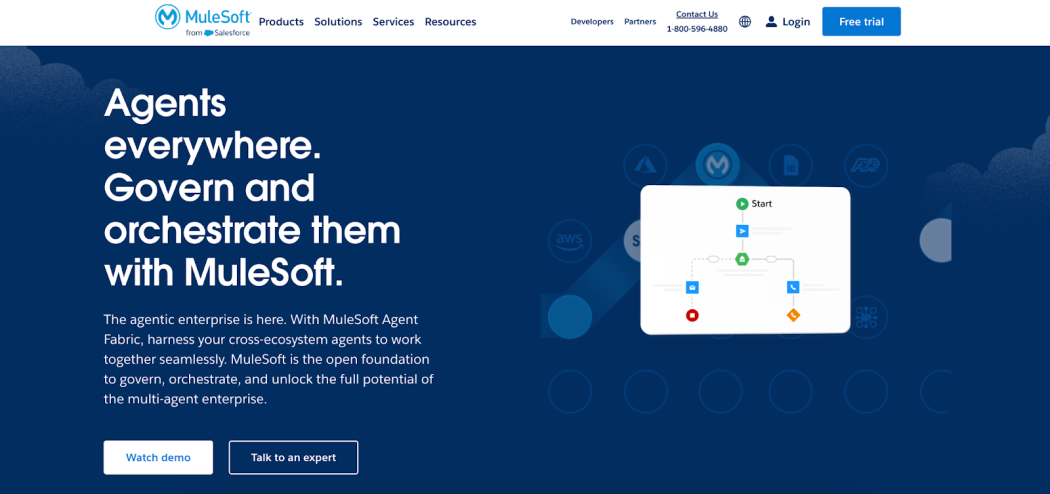
MuleSoft works differently from the rest. It is not just about connecting two systems. It is about defining how all systems interact.
It builds an API layer that controls how data moves across the environment. This creates a more structured setup, but also requires more planning.
It is often used when integration becomes part of the system architecture rather than a single task.
Teams typically use it for:
- Building API based integration layers
- Standardizing communication between systems
- Working deeply within the Salesforce ecosystem
- Controlling data flow across multiple services
- Supporting large and complex environments
It is not the fastest option to implement, but it is built for long-term stability.
How These Tools Differ in Practice
At a glance, all these tools connect Salesforce and Azure DevOps. The difference appears later.
Some are quick to launch but limited as workflows grow. Others take more effort at the beginning but handle complexity better over time.
The choice depends on how your workflows evolve, not just what you need today.
What Changes Once the Connection Is in Place
When Salesforce and DevOps start working together properly, the difference shows up in daily work.
Less time is spent checking data. Fewer updates are missed. Teams do not have to ask for information that should already be visible.
Over time, this leads to:
- Less manual coordination
- More reliable data
- Faster transitions between teams
- Better visibility across the process
It is not a sudden shift, but it changes how work flows through the system.
Choosing Based on How Your Workflow Evolves
Most tools offer similar features on paper. What matters more is how they fit your process.
It helps to think about:
- Whether you need full synchronization or simple automation
- How complex your workflows are now
- How likely they are to change
- How many systems need to be connected
- How much control you need over data behavior
These factors usually point to the right option.
The Easier It Is to Adjust, the Easier It Is to Scale
As systems grow, the ability to change them becomes more important than how they were built at the start.
If every update takes effort, progress slows down. If changes are easy to make, the system keeps moving forward without friction.
No code tools make that possible by removing unnecessary steps between an idea and its implementation.
The tools in this list offer different ways to approach that balance. The right choice depends on how your system is expected to grow over time.